
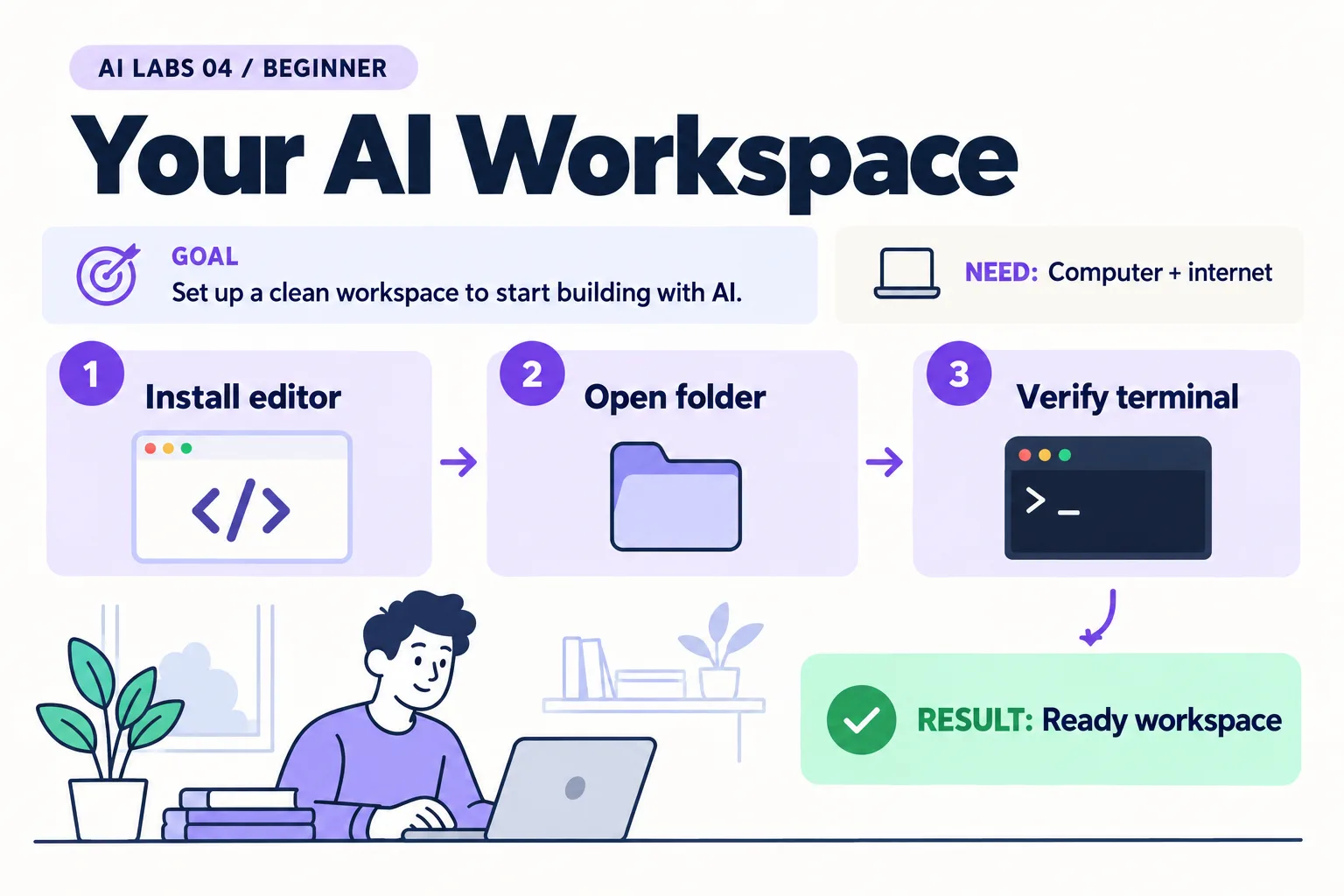
Overview: Install editor → Open folder → Verify terminal → Ready workspace. The infographic is a learning overview, not a screenshot of an executed result.
Level: Beginner · Hands-on time: approximately 30 minutes, excluding long downloads or account approval · Reading time: 4 minutes
Tools and prerequisites: Windows or macOS computer; browser; permission to install VS Code.
Cost: VS Code core editor: no software purchase required. AI services are separate.
Before any AI tool can help with your files, you need a workspace you understand. Your first setup should prove that you can open a project, change a file, and find that same folder in a terminal. You do not need to install several AI extensions before doing those three things.
You will end with an ai-labs folder containing a saved note, open in VS Code, with a terminal showing the same location. VS Code’s core editor can be used without an AI account.
Why it matters: most later labs assume you can open a folder, edit a file and run a command in the same place.
1. Install the editor for your computer
Objective: get the official application. Visit the VS Code download page, choose your operating system, and run the installer.
On Windows, the User Installer is the option VS Code recommends for most people and needs no administrator rights; the System Installer installs for all users and does. Keep the option to add the editor to PATH. On macOS, open the downloaded disk image and drag the app to Applications. Launch the installed app rather than repeatedly opening the installer.
Verify: the Welcome screen opens. If a company-managed device blocks installation, use your approved software request process; the browser-only first lab remains available.
2. Create and open a project folder
Objective: keep your experiments together. In File Explorer or Finder, create ai-labs inside Documents. In VS Code, choose File → Open Folder, select that folder, and open it. Trust it only because you created it and know what is inside.
Use the Explorer panel’s New File action to create notes.txt. Paste this and save with Ctrl+S on Windows or Cmd+S on macOS:
My first AI workspace
Dataset: fictional Sample Utility Co. requests
Goal: complete one small experiment and verify it
Expected result: notes.txt appears in the Explorer and on disk. A dot on the editor tab commonly indicates unsaved changes; save before continuing.
3. Open and identify the terminal
Objective: connect the editor to a command-line workspace. Choose Terminal → New Terminal. A terminal accepts typed commands; a shell interprets them. On Windows you may see PowerShell; macOS commonly uses zsh.
Run this in either PowerShell or a macOS/Linux shell:
pwdThis prints the current folder. List its contents with Get-ChildItem in PowerShell or ls in macOS/Linux.
Verify: the folder ends in ai-labs and the listing includes notes.txt. If the terminal starts elsewhere, close that terminal and open a new one after opening the correct project folder.
4. Make command-line launching optional
Objective: understand code . without making it a prerequisite. On macOS, open the Command Palette with Cmd+Shift+P, search for Shell Command: Install ‘code’ command in PATH (current versions may label it Install ‘code’ and optionally ‘copilot’ commands in PATH; choose No if asked about the Copilot CLI), and run it if permitted. Restart your terminal afterward. On Windows, restart the terminal so it picks up the installer’s PATH change.
From the ai-labs folder, try:
code --version
code .
The first prints version information; the second opens the current folder in VS Code. The dot means “this folder.”
Troubleshooting: if code is not recognized, use File → Open Folder. You can finish the lab while fixing PATH later. Do not paste a random PATH replacement from an online answer.
5. Record the setup and stop there
Objective: establish a reproducible starting point. Create setup-notes.txt with your operating system, VS Code version (Help → About on Windows, Code → About Visual Studio Code on macOS), and terminal name. Note whether command-line launching works.
Checkpoint: reopen the project from disk and confirm the two saved files remain. Extensions are optional for this lab. In later posts, install only the named official extension or tool required for that experiment.
If an extension asks to trust a publisher, check the publisher identity on its Marketplace page. Similar names are not proof that two extensions come from the same provider.
Final verification checklist
- VS Code opens.
- The project folder contains saved files.
- The terminal points to that folder.
- Your operating system and editor version are recorded.
Recap: installed editor, saved files in a project folder, a terminal in that folder, and a written setup record.
Completed outcome: Ready workspace. Keep your result and its verification record together.
FAQs
Is VS Code an AI model?
No. It is an editor; AI features are supplied through supported integrations.
Must I install Python now?
No. The Python API lab provides its own setup sequence.
Next lab
Terminal and Git Basics for AI Beginners adds checkpoints so you can review changes.
Related labs
Sources and research notes
Research checked on 21 October 2026. Official documentation supports the tool behavior and requirements; the fictional fixtures, walkthrough, checks and teaching sequence are original examples. Account access, plans and interface labels can change. See the library validation report for what was executed locally and what still requires a live-service run.
Frequently asked questions
Is VS Code an AI model?
No. It is an editor; AI features are supplied through supported integrations.
Must I install Python now?
No. The Python API lab provides its own setup sequence.
Continue your trail
You now have the Foundations context.
Save this guide, continue to the next concept or return to the Knowledge Library with your context intact.
Foundations
5 resources in this area.

Practical SAP notes, structured for review, reuse and long-term maintenance.
Working on an FI-CA or IS-U implementation? I take on a limited number of advisory and architecture engagements.
Get in touch →