
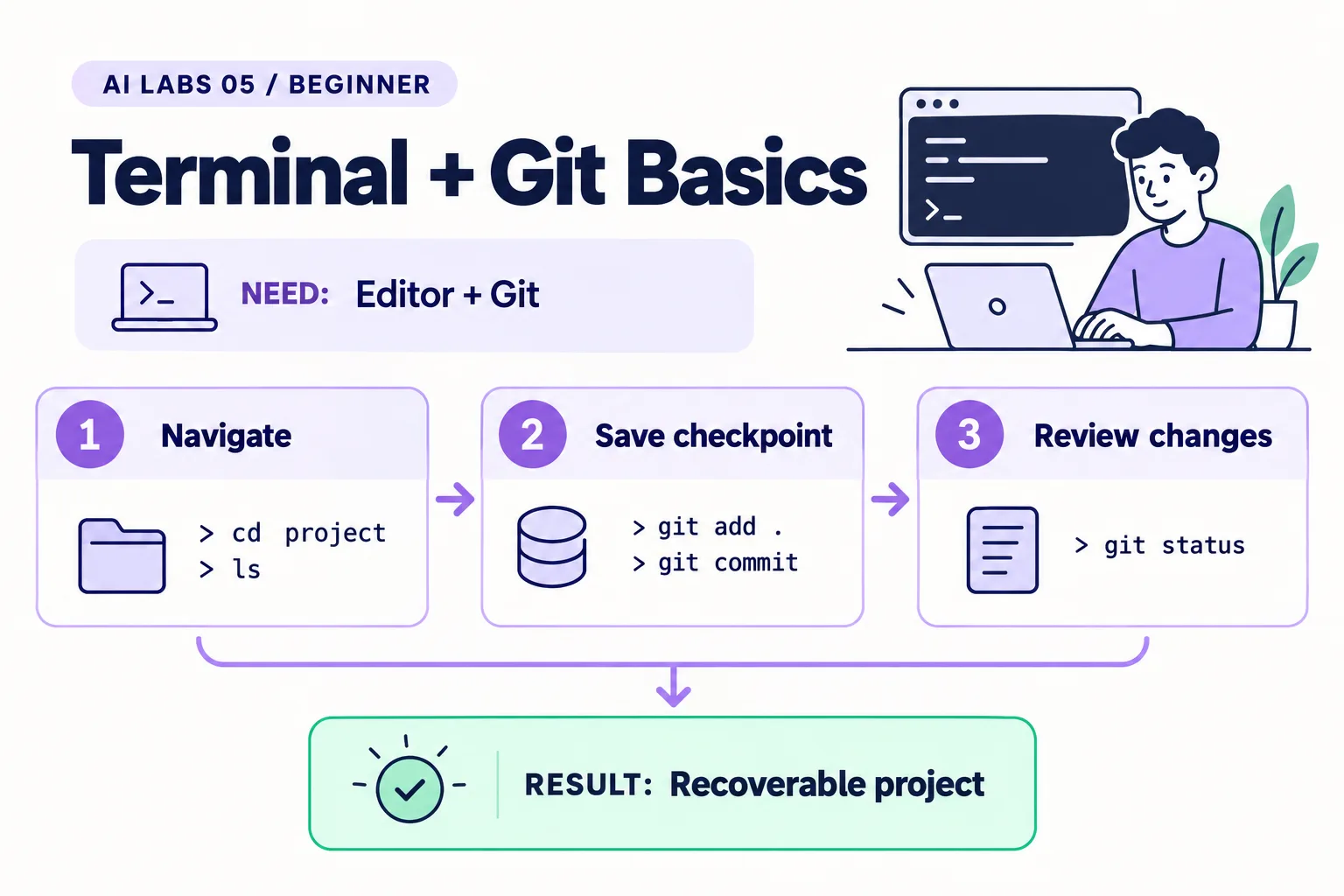
Overview: Navigate → Save checkpoint → Review changes → Recoverable project. The infographic is a learning overview, not a screenshot of an executed result.
Level: Beginner · Hands-on time: approximately 40 minutes, excluding long downloads or account approval · Reading time: 4 minutes
Tools and prerequisites: VS Code or another editor; terminal; Git.
Cost: Git is available without a software purchase; no hosting account is required.
When an AI tool edits your files, you need a way to see exactly what changed and to get back if it goes wrong. Git records project checkpoints; the terminal lets you run precise actions in the correct folder. This lab introduces both without publishing anything online.
You will end with a local repository with two commits and a readable history. A commit is a saved checkpoint of selected file contents.
Why it matters: AI coding tools can change many files quickly; a diff and a checkpoint make those changes reviewable.
1. Confirm the folder and install Git
Objective: avoid running commands in the wrong place. Open the ai-labs folder from the VS Code setup lab, then open Terminal → New Terminal. Run pwd and confirm its location.
Install Git (you may already have it; the check below tells you) from git-scm.com, following your operating system’s installer. On a managed device, use an approved installation. Open a new terminal and run:
git --versionVerify: a version number appears. “Command not found” means installation or PATH needs attention. Reopen the terminal before reinstalling anything.
2. Create the local repository
Objective: start tracking this project. In the project terminal, run each command separately:
git init
git status
Create learning.txt in the editor with I can review a change. and save it. Also create .gitignore with:
.env
.venv/
__pycache__/
Expected result: git status lists the two files as untracked. The ignore file helps exclude local secrets and environment files; it does not remove a secret that has already been committed.
3. Configure your commit identity for this project
Objective: label your own checkpoints. Run these using your chosen commit name and email in place of the sample values:
git config user.name "Your chosen commit name"
git config user.email "your-commit-address@example.com"
The values above are examples, not an address to contact. For a practice-only repository, you may use a clearly fictional identity. If you later publish commits, choose the identity you actually intend to expose.
Verify: git config user.name prints your chosen value. These commands apply to the current repository because they omit --global.
4. Save the first checkpoint
Objective: select and commit the intended files. Run:
git add learning.txt .gitignore
git diff --cached
git commit -m "Save first learning checkpoint"
git status
git add stages the named files. git diff --cached shows the staged content. The commit records it.
Expected result: Git reports a commit and then a clean working tree. If it says there is nothing to commit, confirm that you saved the file and that the terminal is in the right repository. If identity is missing, finish step 3.
5. Review a change before saving it
Objective: practice the same review you will use with AI-generated edits. Add a second line to learning.txt: I check the result before accepting it. Save, then run:
git diff
git add learning.txt
git commit -m "Add verification habit"
git log --oneline -2
Verify: the diff contains only your new line, and the log lists two commits. A diff is a comparison of versions; + marks added lines and - marks removed lines.
6. Inspect an earlier version without changing your files
Objective: learn a safe recovery aid. Run:
git show HEAD~1:learning.txtExpected result: only the original line appears. HEAD~1 means one commit before the current commit. Copy that earlier content into a new file if you need a reference; this read-only command has not replaced your current file.
Checkpoint: you can inspect what changed, save a checkpoint, and read an older version. Those three actions are enough to make your next AI coding experiment easier to review.
Final verification checklist
- Git prints a version.
- Two intended files were reviewed before the first commit.
- The log shows two commits.
- You can inspect the first version without replacing current work.
Recap: git init, git add, git diff, git commit, git log and git show give you review, checkpoint and recovery without any online account.
Completed outcome: Recoverable project. Keep your result and its verification record together.
FAQs
Is Git the same as GitHub?
No. Git records history locally; GitHub is one service that can host repositories.
Does git add save every future edit?
No. Stage again after making additional edits if you want them in the next commit.
Next lab
Cursor for Beginners: Build Your First Task Tracker is the first lab where an AI editor changes files for you.
Related labs
- Set Up VS Code for AI Experiments: Windows and Mac
- Cursor for Beginners: Build Your First Task Tracker
Sources and research notes
Research checked on 21 October 2026. Official documentation supports the tool behavior and requirements; the fictional fixtures, walkthrough, checks and teaching sequence are original examples. Account access, plans and interface labels can change. See the library validation report for what was executed locally and what still requires a live-service run.
Frequently asked questions
Is Git the same as GitHub?
No. Git records history locally; GitHub is one service that can host repositories.
Does git add save every future edit?
No. Stage again after making additional edits if you want them in the next commit.
Continue your trail
You now have the Foundations context.
Save this guide, continue to the next concept or return to the Knowledge Library with your context intact.
Foundations
5 resources in this area.

Practical SAP notes, structured for review, reuse and long-term maintenance.
Working on an FI-CA or IS-U implementation? I take on a limited number of advisory and architecture engagements.
Get in touch →