
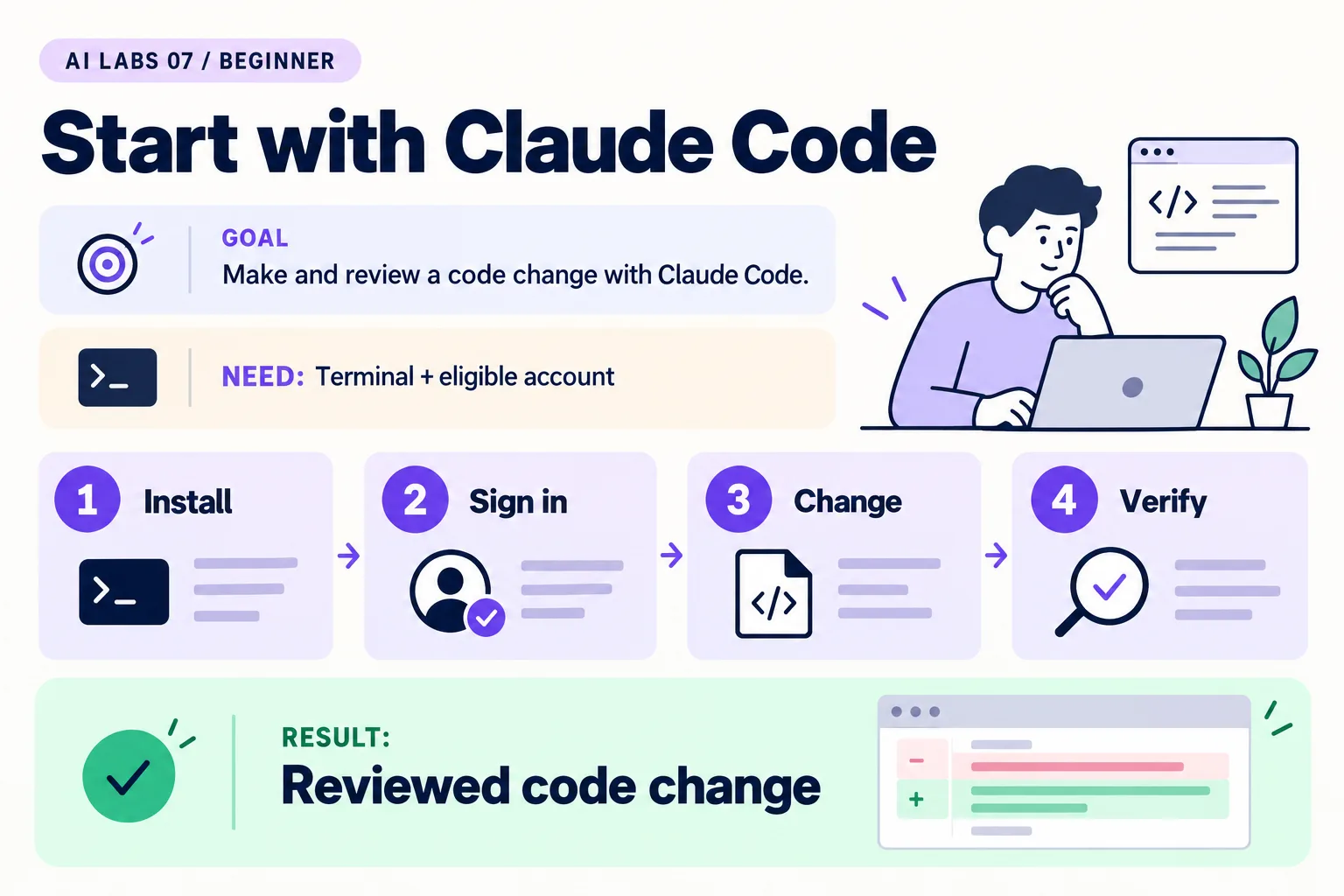
Overview: Install → Sign in → Change → Verify → Reviewed code change. The infographic is a learning overview, not a screenshot of an executed result.
Level: Beginner · Hands-on time: approximately 50 minutes, excluding long downloads or account approval · Reading time: 4 minutes
Tools and prerequisites: Terminal; editor; browser; Claude Code; eligible account.
Cost: Eligible Claude access required; subscription allowances or Console charges vary.
Claude Code can work inside a project, inspect files, and propose changes. Your first task will be deliberately small: improve the provided task-tracker starter while keeping it as a single HTML file.
You will end with: a reviewed change, a version record, and a manual verification result. An eligible account is required; installing the tool does not itself provide model access.
Why it matters: a terminal agent can read and edit files and run commands, so the habits that keep it safe (right folder, small task, read the prompts, check the diff) matter from the first session.
1. Prepare a disposable project
Objective: keep the first session understandable. Create claude-task-lab, open it in your editor, and copy the supplied task-tracker starter into it as index.html. Open the file in a browser and add a sample task. Confirm that completion and deletion buttons do not exist yet.
If you know Git, initialize the folder and commit the starter before continuing. Otherwise retain a separate copy of the starter file.
Verify: your terminal’s pwd ends in claude-task-lab. Do not start from your Documents folder or an unrelated client project.
2. Install and verify Claude Code
Objective: install through an official route. The documentation recommends the native installer. On macOS, Linux or WSL, run:
curl -fsSL https://claude.ai/install.sh | bashOn Windows, in PowerShell (the prompt starts with PS):
irm https://claude.ai/install.ps1 | iexThese download and run Anthropic’s installer, so use them only if your device policy allows it. Alternatives are brew install --cask claude-code (Homebrew) and winget install Anthropic.ClaudeCode (WinGet); these do not auto-update. A Windows CMD variant and Linux package managers are listed in the official quickstart. Pick one route; do not install a second package manager solely because this article mentions it.
Open a new terminal and run:
claude --versionExpected result: a version number followed by (Claude Code). Record it in setup-notes.txt. If claude is not recognized, follow the installation troubleshooting guide before rerunning an installer.
3. Start and authenticate
Objective: connect this project session to your account. From the project terminal, run:
claudeFollow the browser sign-in prompts. Use an eligible Claude subscription (Pro, Max, Team or Enterprise), a Claude Console account, or supported organization-provided access such as a cloud provider. Console usage can incur API charges. Check the account you selected before accepting billing-related prompts.
Inside the running session, type /help to see session commands (use /login later to switch accounts). These are different from shell commands: claude --version runs in the terminal; /help runs inside Claude Code.
Verify: ask “What folder are we working in, and what files are present?” Confirm the answer against your editor.
4. Inspect before editing
Objective: establish that the agent understands the starter. Send:
Read index.html. Explain how tasks are added.
Propose a minimal change to add Complete/Undo and Delete buttons.
Keep user-entered task labels as textContent.
Do not add dependencies, storage or network calls. Do not edit yet.
Expected result: a plan tied to the existing form and list. If it describes missing files, stop and correct the folder or file access.
5. Implement and review the change
Objective: make the planned feature concrete. Ask it to implement the plan, then list changed files and verification performed. Review file-write and terminal permission requests as they appear. Do not select a broadly permissive mode merely to avoid reading prompts.
Open the diff in your editor or run git diff if using Git. Check that the starter remains a single file and no external script has been added.
Verify: add a task, complete it, undo it, and delete it in your browser. Add spaces only and confirm nothing appears. Add <b>sample</b> and confirm it is displayed literally.
If a button submits the form unexpectedly, ask the agent to check its type and event handling, then rerun the checks.
6. Close with evidence
Objective: distinguish what happened from what was claimed. Save the tool version, task prompt, changed filenames, and manual check results in experiment-notes.txt. Do not save account credentials.
Checkpoint: the original behavior still works and both new buttons behave correctly. Commit the reviewed change or keep a clearly named finished copy.
Final verification checklist
- Version and account route recorded.
- Correct project confirmed before edits.
- Diff reviewed.
- Add, complete, undo, delete and whitespace checks pass.
Completed outcome: Reviewed code change. Keep your result and its verification record together.
Recap
You installed Claude Code, confirmed the version, signed in, asked for a plan before edits, reviewed permission prompts and the diff, and verified the buttons by hand.
FAQs
Does installation require Node.js?
No. The native installer, Homebrew and WinGet routes shown here do not use an npm installation. Follow the current official route for your system.
Can I skip the terminal?
Claude Code is also offered in other interfaces, such as a desktop app, VS Code and the web. This post specifically teaches its terminal workflow.
Related labs
- Cursor for Beginners: Build Your First Task Tracker
- Codex for Beginners: Complete a Small Coding Task
Sources and research notes
Research checked on 21 October 2026. Official documentation supports the tool behavior and requirements; the fictional fixtures, walkthrough, checks and teaching sequence are original examples. Account access, plans and interface labels can change. See the library validation report for what was executed locally and what still requires a live-service run.
Next lab
Save the verified change and repeat a small task with Codex for Beginners.
Frequently asked questions
Does installation require Node.js?
No. The native installer, Homebrew and WinGet routes shown here do not use an npm installation. Follow the current official route for your system.
Can I skip the terminal?
Claude Code is also offered in other interfaces such as a desktop app, VS Code and the web. This post teaches the terminal workflow.
Continue your trail
You now have the Tools context.
Save this guide, continue to the next concept or return to the Knowledge Library with your context intact.
Tools
5 resources in this area.

Practical SAP notes, structured for review, reuse and long-term maintenance.
Working on an FI-CA or IS-U implementation? I take on a limited number of advisory and architecture engagements.
Get in touch →