
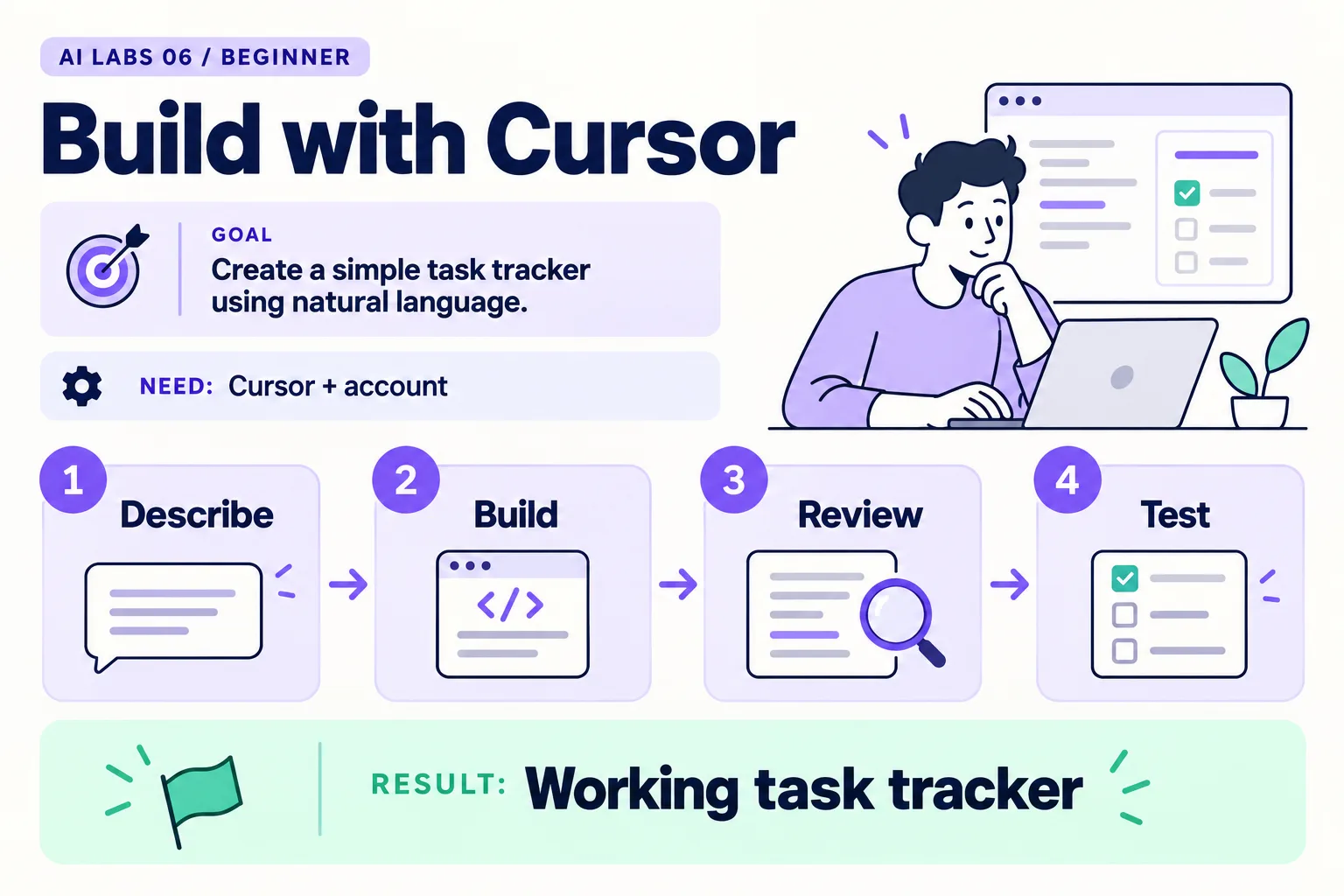
Overview: Describe → Build → Review → Test → Working task tracker. The infographic is a learning overview, not a screenshot of an executed result.
Level: Beginner · Hands-on time: approximately 50 minutes, excluding long downloads or account approval · Reading time: 5 minutes
Tools and prerequisites: Cursor; browser; accessible Cursor AI account; Git optional.
Cost: AI access depends on your Cursor plan and current allowance; verify before starting.
Your first AI-built app should be small enough to understand. In this lab, you will ask Cursor to create a single-file task tracker for Sample Utility Co., then check it in a browser.
You will end with: a working one-file tracker that lets you add, complete, undo, and delete tasks, plus a pass/fail record you produced yourself. It stores nothing after a refresh. That deliberate limit keeps the first experiment focused on visible behavior rather than accounts, databases, or deployment.
Why it matters: an agent’s summary is a claim, not evidence. The habit you practice here, brief first, plan second, build third, then test by hand, carries over to every later lab.
1. Install Cursor and open an empty project
Objective: give the agent a clearly bounded workspace. Download Cursor from cursor.com, install the version for your operating system, open the app, and sign in with an account that has access to its AI features. Create cursor-task-lab in Documents and open it with File → Open Folder.
Create brief.txt, paste the requirements below, and save it:
Build a single index.html with HTML, CSS and JavaScript only.
Title: Sample Utility Tasks.
Provide a labeled task input, Add task button and task list.
Users can mark complete, undo completion and delete a task.
Reject empty or whitespace-only tasks.
Use textContent for user-entered task labels; do not insert them as HTML.
No external packages, network requests, sign-in or storage.
The app must work by opening index.html in a browser.
Verify: the folder contains only your brief. If an old project appears, open the new folder before sending the request.
2. Ask for a plan before a build
Objective: make the intended scope visible. Open Cursor’s Agent panel from the interface, or with Cmd+I on macOS (check Cursor’s keyboard-shortcut settings for your system). Send:
Read brief.txt. Explain your plan in five bullets.
List how I can manually verify each requirement.
Do not edit files yet.
Expected result: the plan mentions a single HTML file and manual browser checks. If it proposes React, a backend, or package installation, ask it to revise the plan to match the brief.
This is a workflow instruction, not an enforced sandbox. Review permission prompts and the actual changed-file list.
3. Build and open the result
Objective: create the first working version. Send: “Implement the agreed single-file plan. Then list files changed and the checks you could actually run.” Review the edits in Cursor’s diff view.
Find index.html in File Explorer or Finder and open it in your browser. You should see a heading, input, Add button, and an initially empty list.
Troubleshooting: if the browser displays code, check that the filename ends in .html, not .html.txt. If a preview differs from the file you opened, confirm the browser path points to this project.
4. Use an acceptance test table
Objective: verify behavior independently of the agent’s report. Run these checks yourself:
| Action | Expected result |
|---|---|
| Add “Review reading REQ-101” | One task appears |
| Submit spaces only | No task appears |
| Complete the task | A visible completed state appears |
| Undo completion | The task becomes active |
| Delete the task | It disappears |
Add <b>sample</b> |
Literal text appears, not bold markup |
| Refresh the page | List resets; this lab has no persistence |
Verify: record pass or fail for every row. An agent saying “tests pass” does not establish that it opened a browser. Ask what it ran, then distinguish automated checks from your manual checks.
5. Fix one observed failure
Objective: learn a precise correction loop. If a test fails, report the action, actual result, and expected result:
Observed failure: submitting three spaces creates a blank list item.
Expected: no item is added.
Fix only this behavior and explain the changed lines.
Retest that case and the other six rows. For comparison, the series downloads include a complete reference task tracker. Open it separately rather than replacing your attempt before you have inspected the differences.
Checkpoint: you can demonstrate all required behaviors and explain the app’s reset-on-refresh limitation. Save a Git checkpoint if you completed the Git lab. Your next change should start from a known working version.
Final verification checklist
- Every acceptance-table row passes.
- The changed files match the brief.
- User text is rendered as text.
- Reset-on-refresh behavior is documented.
Completed outcome: Working task tracker. Keep your result and its verification record together.
Recap
You wrote a brief, asked for a plan before any edits, let Cursor build, tested seven behaviors yourself, and fixed one observed failure with a precise report. The same loop works for any small change.
FAQs
Why is there no database?
A single-file app lets you inspect the entire first experiment. Persistent storage is a separate feature.
Can I publish this immediately?
First review behavior and accessibility in your intended browser. This lab does not test a hosted production deployment.
Related labs
- Terminal and Git Basics for AI Beginners
- Claude Code for Beginners: Install and Complete Your First Task
Sources and research notes
Research checked on 21 October 2026. Official documentation supports the tool behavior and requirements; the fictional fixtures, walkthrough, checks and teaching sequence are original examples. Account access, plans and interface labels can change. See the library validation report for what was executed locally and what still requires a live-service run.
Next lab
Save the verified tracker, then try a similarly small change in Claude Code for Beginners.
Frequently asked questions
Why is there no database?
A single-file app lets you inspect the entire first experiment. Persistent storage is a separate feature.
Can I publish this immediately?
First review behavior and accessibility in your intended browser. This lab does not test a hosted production deployment.
Continue your trail
You now have the Tools context.
Save this guide, continue to the next concept or return to the Knowledge Library with your context intact.
Tools
5 resources in this area.

Practical SAP notes, structured for review, reuse and long-term maintenance.
Working on an FI-CA or IS-U implementation? I take on a limited number of advisory and architecture engagements.
Get in touch →