
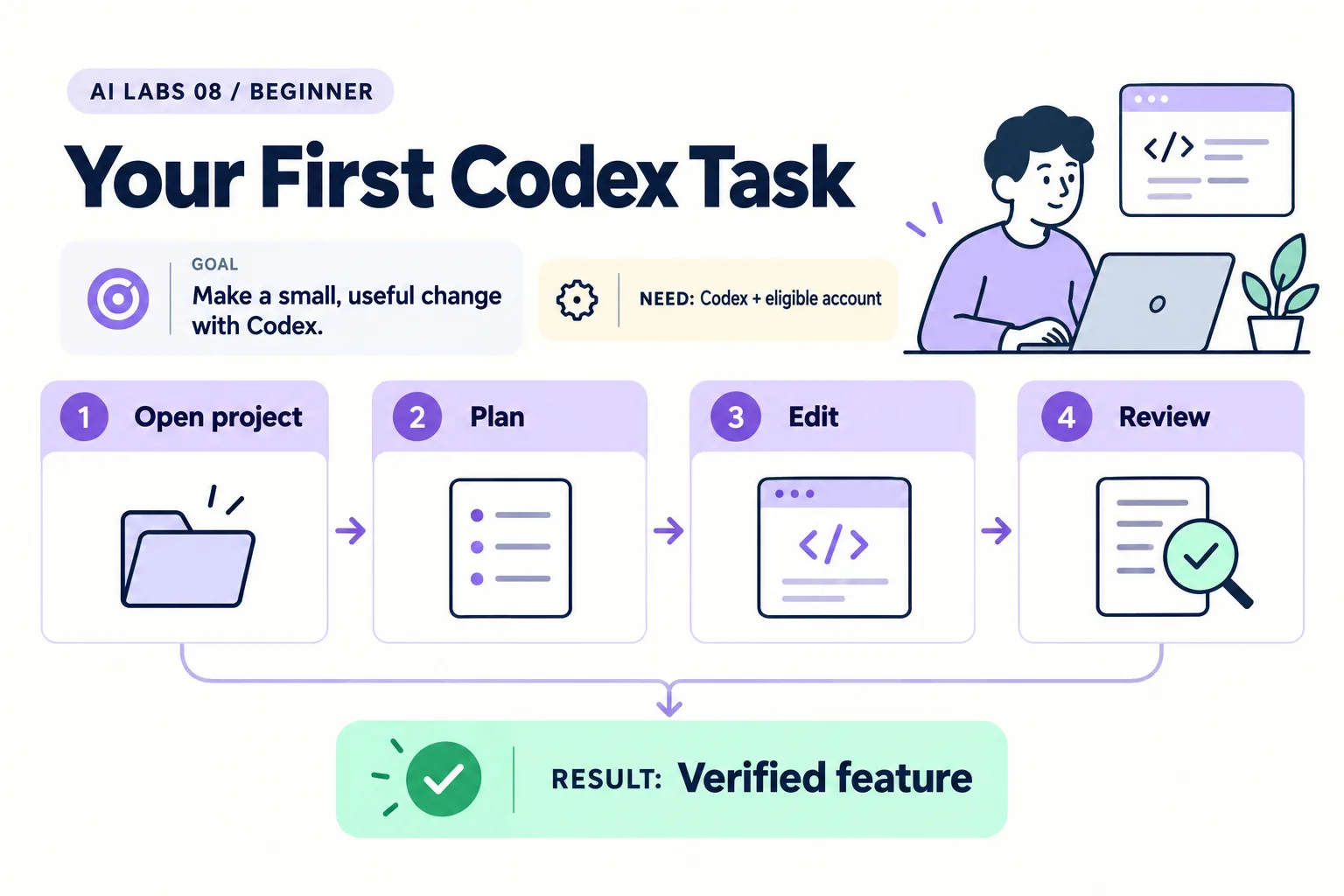
Overview: Open project → Plan → Edit → Review → Verified feature. The infographic is a learning overview, not a screenshot of an executed result.
Level: Beginner · Hands-on time: approximately 55 minutes, excluding long downloads or account approval · Reading time: 5 minutes
Tools and prerequisites: Editor; browser; Codex CLI; supported installation route; eligible access.
Cost: Account access and allowances vary; API-based usage is billed separately when used.
A useful first Codex task has a clear finish line. You will add a task counter to a small browser app and check that adding and deleting tasks updates the count.
You will end with: a task counter you verified through seven manual checks, plus a short record of the prompt, version and results.
Why it matters: “add a counter” sounds trivial, which is exactly why it exposes whether you specified the behavior (total or remaining?) and whether you verify instead of trusting the summary.
This guide uses the CLI so the project location and commands remain explicit. It does not require a specific model choice. Use the account and options available through the current official installation and sign-in flow.
1. Prepare the known working app
Objective: start from a verifiable baseline. Create codex-task-lab and save the supplied counter-free task tracker as index.html. It already has Complete/Undo and Delete controls but no total counter. Keep the separate finished reference unchanged.
Open the resulting starter in a browser. Add, complete and delete a task. Confirm those behaviors work without a counter.
Verify: the browser shows no count display and the developer console shows no errors. This baseline check matters more than making the starter look perfect.
2. Install through the documented CLI route
Objective: get the official tool. Open the Codex CLI page (the former developers.openai.com address redirects there), choose its current installation route for your operating system, and follow it. The article links the maintained instructions instead of assuming an older npm command is still recommended.
On macOS and Linux, the documented standalone route is:
curl -fsSL https://chatgpt.com/codex/install.sh | shThis downloads and runs the official installer. On Windows, select the Windows tab on the linked installation page and follow its current native route; the Windows command was not exposed in the fetched default documentation, so it is not guessed here. If your device restricts installers, use the approved software process.
Open a new terminal and run:
codex --versionThen, from your codex-task-lab folder:
codexOn first run, choose “Sign in with ChatGPT” or another offered method. Confirm whether you are using account-based access or API billing. The CLI page does not list which plans include Codex, so check plan availability and usage allowances in the official pricing pages; an installed CLI alone does not establish access.
Verify: record the tool version and ask it to list the current project files. If a different project appears, exit and restart from the correct folder.
3. Ask for an inspectable plan
Objective: make the feature and verification criteria explicit. Send:
Inspect index.html. Add a visible total task count with an aria-live="polite"
status region. Empty list: 0 tasks. Adding increments the count.
Deleting decrements it. Completing a task does not change the total.
Keep one HTML file with no dependencies, storage or network calls.
First explain the proposed change and manual checks; do not edit yet.
Expected result: a plan that distinguishes total tasks from incomplete tasks. If it proposes a “remaining tasks” count, clarify that requirement before implementation.
4. Implement and inspect the diff
Objective: review a concrete change. Ask Codex to implement the plan. Read any file or command approvals and the final changed-file report. Inspect the diff in your editor or with Git.
Verify: the app still contains one main HTML file and the counter update is connected to both add and delete operations. If additional frameworks or package files appear, ask why and return to the stated single-file scope.
5. Check boundary cases yourself
Objective: verify the result independently. Refresh the page and run:
| Action | Expected count |
|---|---|
| Fresh page | 0 |
| Add first task | 1 |
| Add second task | 2 |
| Complete one task | 2 |
| Delete one task | 1 |
| Submit whitespace | 1 |
| Delete last task | 0 |
Use Tab to reach the form and buttons, and note whether the count is visible on the page. Confirm that the status text exists in the page; an aria-live attribute alone does not prove a complete accessibility assessment.
6. Record the result
Objective: make the experiment repeatable. Save the task prompt, version, manually checked browser, and pass/fail table. If a check failed, describe the action and observed result before requesting a correction.
Checkpoint: you can demonstrate the counter’s behavior without relying on the agent’s summary. Keep a Git checkpoint or a finished copy before trying a comparison experiment.
Final verification checklist
- Starter has no counter and no console error.
- CLI version and access route recorded.
- Only intended files changed.
- All seven count checks pass.
Completed outcome: Verified feature. Keep your result and its verification record together.
Recap
You started from a known baseline, installed and signed in to the CLI, asked for a plan before edits, reviewed the diff, and checked seven count scenarios yourself.
FAQs
Which model should I choose?
Use a model supported by your account and record the selection. This lab does not require, or claim, a best model.
Why is the installation command linked?
The current official route can differ by operating system and product release. The maintained page supplies the appropriate route.
Related labs
- Claude Code for Beginners: Install and Complete Your First Task
- Cursor vs Claude Code vs Codex: Run Your Own Fair Comparison
Sources and research notes
Research checked on 21 October 2026. Official documentation supports the tool behavior and requirements; the fictional fixtures, walkthrough, checks and teaching sequence are original examples. Account access, plans and interface labels can change. See the library validation report for what was executed locally and what still requires a live-service run.
- Codex CLI installation and use
- Codex quickstart (covers the ChatGPT app route; this lab uses the CLI)
Next lab
Save the verified result, then compare the three tools on equal terms in Cursor vs Claude Code vs Codex.
Frequently asked questions
Which model should I choose?
Use a model supported by your account and record the selection. This lab does not require, or claim, a best model.
Why is the installation command linked?
The current official route can differ by operating system and product release, so the maintained page is the source of truth.
Continue your trail
You now have the Tools context.
Save this guide, continue to the next concept or return to the Knowledge Library with your context intact.
Tools
5 resources in this area.

Practical SAP notes, structured for review, reuse and long-term maintenance.
Working on an FI-CA or IS-U implementation? I take on a limited number of advisory and architecture engagements.
Get in touch →