
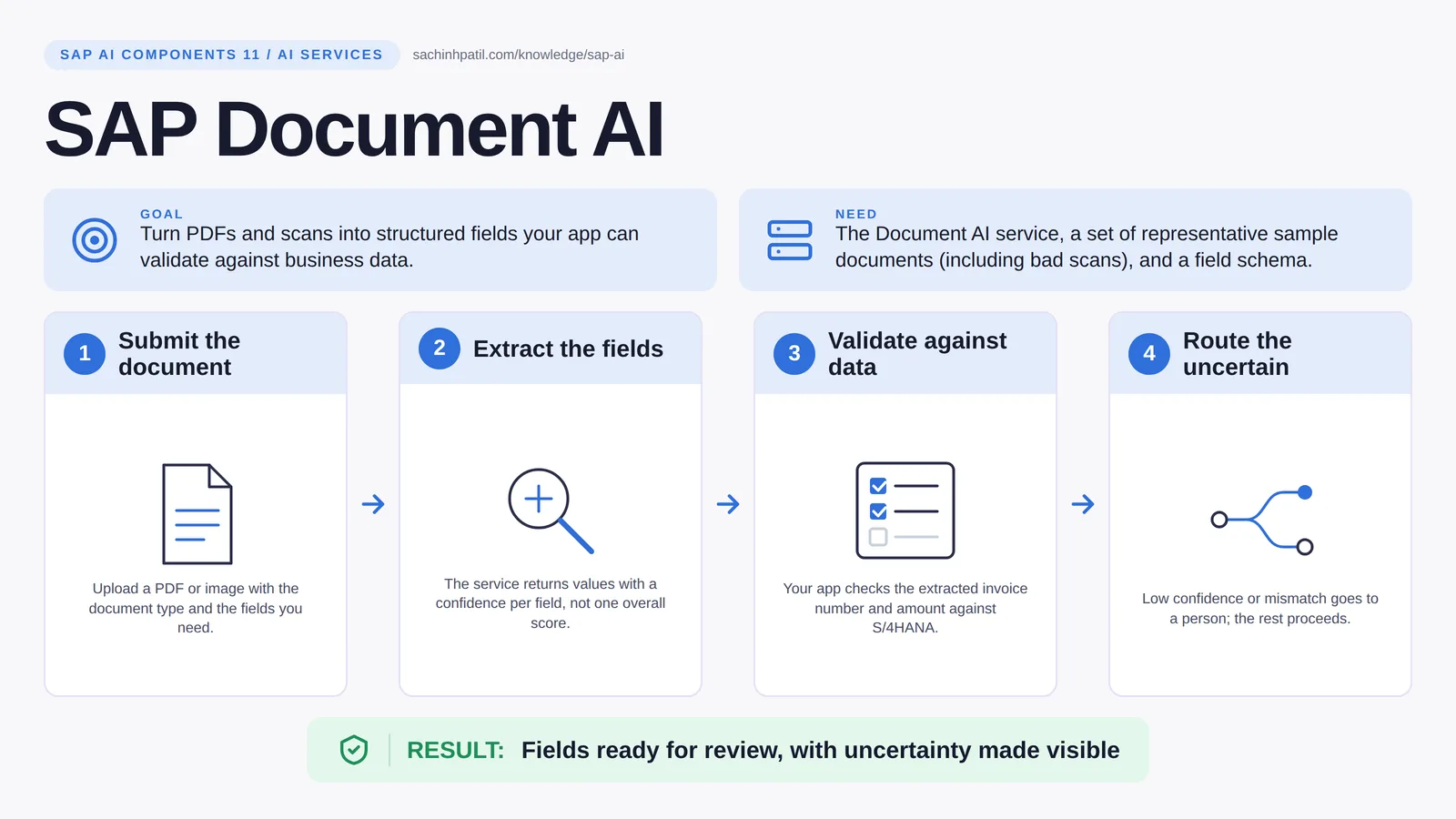
Submit the document → Extract the fields → Validate against data → Route the uncertain → Fields ready for review, with uncertainty made visible. A learning overview, not a screenshot of a live system.
Intermediate · 8 min read · Part 11 of 17 in SAP AI Components Explained
A clerk retypes invoice numbers off PDFs all day. AI can read them in a second, and still tell you when it is unsure. Here is where it helps and where it must not be trusted.
SAP Document AI is the focus of this post. SAP Document AI reads a PDF or a scan, a supplier invoice, a remittance advice, a purchase order, and hands back the fields: invoice number, amount, currency, date. It is the mailroom clerk who types the form for you. Like a good clerk, it also tells you which fields it was unsure about.
By the end you will be able to say in one sentence what SAP Document AI does, draw how data moves through it, and use the design-review line that stops most mistakes: Extracted values still need validation.
SAP Document AI in one sentence
A clerk who reads a scanned invoice and types the fields for you, and tells you when unsure.
| Its job | Turn PDFs and scans into structured fields your app can validate against business data. |
| You need | The Document AI service, a set of representative sample documents (including bad scans), and a field schema. |
| Layer | AI services |
| Design check | Extracted values still need validation. |
The everyday picture
A mailroom clerk transcribing forms. Fast and mostly accurate, but you still check the amount before paying, and you ask when the handwriting is unreadable.
Why SAP Document AI exists
A utility receives payment advices by email as PDFs. A person opens each one, reads the invoice references and matches them to open items. It is slow, it is dull, and the mistakes are expensive. Extraction removes the typing. What it must not remove is the check.
How SAP Document AI works, in four steps
- Submit the document. Upload a PDF or image with the document type and the fields you need.
- Extract the fields. The service returns values with a confidence per field, not one overall score.
- Validate against data. Your app checks the extracted invoice number and amount against S/4HANA.
- Route the uncertain. Low confidence or mismatch goes to a person; the rest proceeds.
Your process sends the document to the service with the document type and the fields it needs. In the pattern shown here, a job runs OCR and extraction and returns each field with a confidence value and, where available, its position on the page. Your app then validates: does this invoice number exist, does the amount match the open item, is the currency right. Fields that pass continue; low confidence or a mismatch routes the document to a person in a review screen with the original alongside.
Where it sits in the SAP landscape
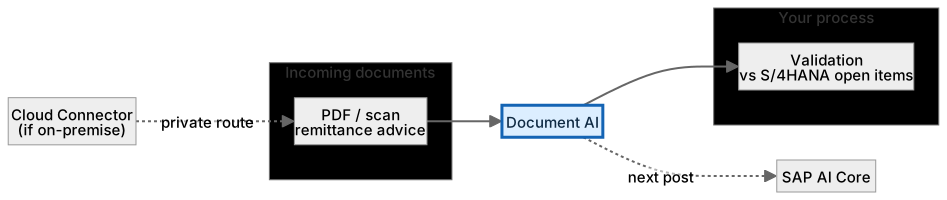
Include bad scans in your test set. Mismatch or low confidence routes to a person.
A worked example, with numbers
A payment advice PDF arrives from a customer. The job returns paymentReference ‘INV-7781’ (confidence 0.97), amount ‘12500’ (0.94), currency ‘AED’ (0.99). The app reads amount as minor units, two decimals: 12500 means AED 125.00. It checks against open items for that customer and finds INV-7781 open at AED 1,250.00, not 125.00. That is a mismatch by a factor of ten, not a match, so the case routes to Reem with the original PDF beside the extracted fields; she sees the advice actually says 1,250.00 and the OCR lost a zero. Extraction alone would have proposed the wrong assignment with 0.94 confidence; validation against the open item caught it. Of 320 advices that morning, 291 matched cleanly and 29 went to review.
How the data flows

The check that actually matters
An extracted value is a reading, not a fact. The classic failure is decimals and digits: 125.00 read from a scan against an open item of 1,250.00 is not a match, and only validation against business data catches it. Measure accuracy per field, because the amount matters more than the vendor’s street name, and keep the original document as evidence.
Extracted values still need validation. An extracted amount of 125.00 and a known open item of 1,250.00 is a digit problem, not a match. Validation catches it; extraction alone will not.
SAP Document AI vs generic OCR
| Question | Option A | Option B |
|---|---|---|
| Output | Named business fields with confidence | Raw text |
| Business tuning | Yes, for invoices, advices, orders | No |
| Validation hook | Designed to be checked against SAP data | You build everything |
| Best for | SAP document processes | One-off text extraction |
What SAP Document AI does, and what it does not
It does
- OCR plus field extraction for documents such as invoices and purchase orders, and customer-defined schemas for others such as payment advices.
- Per-field confidence values and field positions, where the service returns them.
- API access for your own process; check your edition for review UIs.
It does not
- Know whether the invoice is legitimate. That is a business check.
- Understand handwriting reliably. Test with your real worst documents.
- Post anything. It produces fields; your process decides.
Three real situations
Remittance advice reading. Customer payment advices arrive as PDFs; extracted invoice references are matched to open items, and unmatched lines go to a clerk.
Supplier invoice intake. Invoices in three languages are extracted and checked against purchase orders before anyone keys anything.
Document tool for an agent. An agent can request extraction of one attached document; it never sees the raw PDF bytes, only validated fields.
In practice: what teams get wrong
SAP Document AI is the current name for the document-extraction offering that earlier appeared as Document Information Extraction. SAP describes it as combining OCR, pretrained and customer-trained extraction models and LLM-based reasoning, with schema-based extraction so you define the fields rather than maintain templates. It is offered in more than one edition (for example an embedded edition), so confirm which one you have. The pattern in this post is the usual one: submit a job, get back fields with values and, where the service provides them, confidence scores and positions on the page. Check the API reference of your edition for the exact response shape. The design work is choosing the fields, assembling a representative test set that includes your worst real documents, and deciding the confidence threshold below which a document goes to a human. The design work is choosing the fields, assembling a representative test set that includes your worst real documents, and deciding the confidence threshold below which a document goes to a human.
From the field. I have seen a project report 96% accuracy and go live, then discover that figure averaged easy fields with the amount field. The amount is the only field that can cost money when it is wrong.
Other gotchas worth a line:
- Measure accuracy per field; the amount matters more than the vendor address.
- Multi-currency and decimal formats are the common failure.
- Keep the original document reference; the fields are derived, the PDF is evidence.
- Supported document types and plans change; check the current SAP documentation.
Terms you will hear
| Term | Plain meaning |
|---|---|
| OCR | Turning an image of text into machine-readable text. |
| Field extraction | Pulling named values like amount or invoice number. |
| Confidence | How sure the service is about one field, 0 to 1. |
| Bounding box | Where on the page a field was found. |
| Schema | The set of fields you ask for. |
| Pretrained model | A model trained by the vendor on many documents before you use it. |
| Minor units | Amounts as integers: 12500 = 125.00. |
Quick self-check
- In one sentence, what is SAP Document AI’s job?
- Which decision does it not make, and who makes it instead?
- What is the one thing you would verify before calling it production-ready?
Show the answers
- Turn PDFs and scans into structured fields your app can validate against business data.
- Know whether the invoice is legitimate. That is a business check.
- Measure accuracy per field; the amount matters more than the vendor address.
Key takeaways
- A clerk who reads a scanned invoice and types the fields for you, and tells you when unsure.
- Extracted values still need validation.
- OCR plus field extraction for invoices, payment advices, purchase orders and custom schemas.
- Know whether the invoice is legitimate. That is a business check.
- Supported document types and plans change; check the current SAP documentation.
FAQs
Was this called Document Information Extraction?
Yes. SAP Document AI is the current name for the service family.
Can it learn my document layouts?
Custom schemas and templates are supported for recurring layouts; check the plan you have.
Keep going in the series
Previous: SAP Build Work Zone and Process Automation Next: SAP AI Core
Full map: SAP AI Components Explained — 17 posts from platform to agents.
Sources and research notes
Research checked on 21 October 2026. Product names, plans, models and regional availability change fast; the starting reference for this component is SAP Document AI. Examples use a fictional utility company and fictional cases (amounts, IDs, names); no customer landscape is described.
Recap
SAP Document AI: turn PDFs and scans into structured fields your app can validate against business data. The result is fields ready for review, with uncertainty made visible. The one thing to remember: extracted values still need validation.
Found this useful? The next post, SAP AI Core, builds on it. Share it with the SAP colleague who keeps asking what all these components actually do.
Frequently asked questions
Was this called Document Information Extraction?
SAP Document AI is the current name for the document-extraction offering that earlier appeared as Document Information Extraction. Older tutorials and APIs may still use the old name, so check which one your landscape shows.
Can it learn my document layouts?
SAP describes schema-based extraction with customer-specific schemas, so you do not have to maintain a template per layout. Which options you get depends on the edition you have.
Further reading
- SAP Document AI — SAP
- SAP Document AI reference architecture — SAP Architecture Center
- SAP Document AI, embedded edition — SAP
Continue your trail
You now have the SAP AI Components context.
Save this guide, continue to the next concept or return to the Knowledge Library with your context intact.
SAP AI Components
17 resources in this area.

Practical SAP notes, structured for review, reuse and long-term maintenance.
Working on an FI-CA or IS-U implementation? I take on a limited number of advisory and architecture engagements.
Get in touch →